🗂️ JSON Renderer — Form 1040
Use ObviousPDF.Json to generate a complete, accessible, interactive IRS Form 1040 PDF directly from a JSON document definition — no C# PDF-building code required.
Render Form 1040 from JSON
using ObviousPDF.Json;

// Render straight from a JSON file to a PDF file
PdfJsonRenderer.RenderFromFile(
    jsonPath:   "form-1040.json",
    outputPath: "form-1040.pdf");

// — or — render from a JSON string in memory
string json = File.ReadAllText("form-1040.json");
PdfJsonRenderer.Render(json, "form-1040.pdf");

// — or — render to a stream (e.g. HTTP response)
using var stream = File.OpenWrite("form-1040.pdf");
PdfJsonRenderer.Render(json, stream);

// — or — build a PdfDocument for further manipulation
// (e.g. merge, split, accessibility check)
using ObviousPDF;
using ObviousPDF.Accessibility;

PdfDocument doc = PdfJsonRenderer.BuildDocument(json);
var checker = new PdfAccessibilityChecker();
var report  = checker.Check(doc);
doc.Save("form-1040.pdf");
Imports ObviousPDF.Json
' Render straight from a JSON file to a PDF file
PdfJsonRenderer.RenderFromFile(
jsonPath:="form-1040.json",
outputPath:="form-1040.pdf")
' Or render from a JSON string
Dim json As String = File.ReadAllText("form-1040.json")
PdfJsonRenderer.Render(json, "form-1040.pdf")
' Or build a PdfDocument for further manipulation
Imports ObviousPDF
Imports ObviousPDF.Accessibility
Dim doc As PdfDocument = PdfJsonRenderer.BuildDocument(json)
Dim checker As New PdfAccessibilityChecker()
Dim report = checker.Check(doc)
doc.Save("form-1040.pdf")open ObviousPDF.Json
// Render straight from a JSON file to a PDF file
PdfJsonRenderer.RenderFromFile(
jsonPath = "form-1040.json",
outputPath = "form-1040.pdf")
// Or render from a JSON string in memory
let json = System.IO.File.ReadAllText("form-1040.json")
PdfJsonRenderer.Render(json, "form-1040.pdf")
// Or build a PdfDocument for further manipulation
open ObviousPDF
open ObviousPDF.Accessibility
let doc = PdfJsonRenderer.BuildDocument(json)
let checker = PdfAccessibilityChecker()
let report = checker.Check(doc)
doc.Save("form-1040.pdf")Add-Type -Path "ObviousPDF.dll"
Add-Type -Path "ObviousPDF.Json.dll"
# Render straight from a JSON file to a PDF file
[ObviousPDF.Json.PdfJsonRenderer]::RenderFromFile(
"form-1040.json",
"form-1040.pdf")
# Or render from a JSON string
$json = Get-Content "form-1040.json" -Raw
[ObviousPDF.Json.PdfJsonRenderer]::Render($json, "form-1040.pdf")
# Or build a PdfDocument for further manipulation
$doc = [ObviousPDF.Json.PdfJsonRenderer]::BuildDocument($json)
$checker = [ObviousPDF.Accessibility.PdfAccessibilityChecker]::new()
$report = $checker.Check($doc)
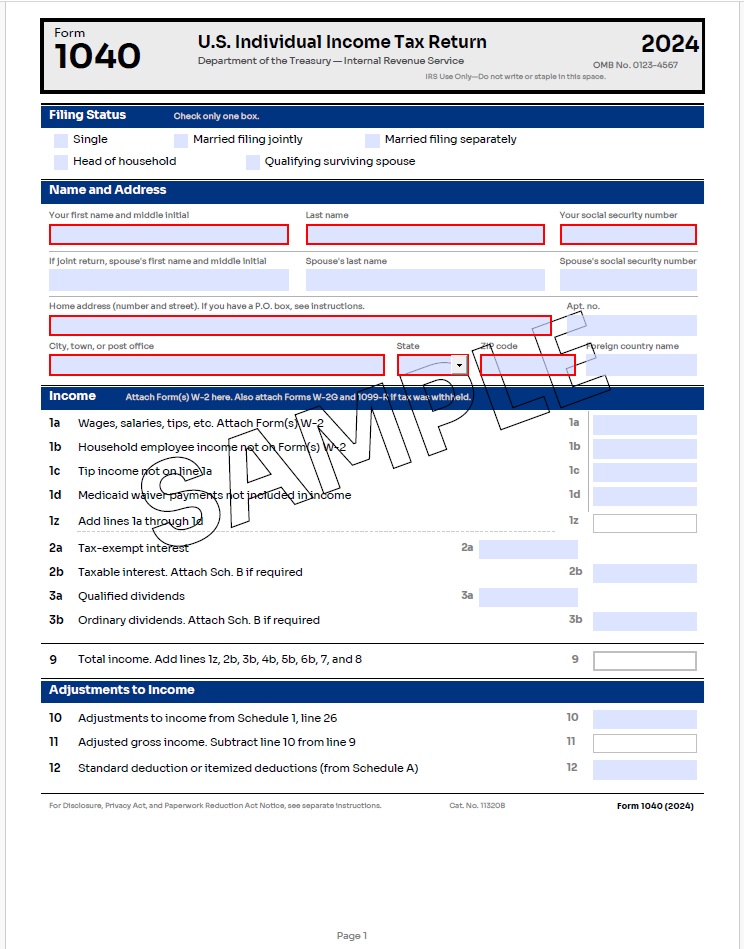
$doc.Save("c:\temp\form-1040.pdf")The sample form-1040.json file is a complete 3-page IRS Form 1040 (2024) with Schedule 1. It includes interactive form fields (text, checkbox, dropdown), an accessible tagged structure tree, embedded font references, and a diagonal SAMPLE watermark on every page. Pass it directly to PdfJsonRenderer.RenderFromFile() to produce the PDF.
JSON Document Schema Overview
A JSON document passed to PdfJsonRenderer follows this top-level structure:
JSON Document Structure
{
  "coordinateOrigin": "topLeft",   // "topLeft" (y↓) or "bottomLeft" (y↑, PDF default)
  "tagged": true,                   // true → Tagged PDF / PDF/UA output
  "accessible": true,               // shorthand: enables tagged + PDF/UA + auto-tagging
  "language": "en-US",              // BCP-47 document language

  "document": {
    "title": "Form 1040 (2024)",
    "author": "Internal Revenue Service",
    "subject": "U.S. Individual Income Tax Return"
  },

  "fonts": [
    { "id": "title-font",  "family": "Helvetica", "style": "Bold" },
    { "id": "body-font",   "family": "Helvetica" },
    { "id": "courier-font","family": "Courier" }
  ],

  "outlines": [
    { "title": "Page 1 — Income",    "pageIndex": 0 },
    { "title": "Page 2 — Tax",       "pageIndex": 1 },
    { "title": "Schedule 1",          "pageIndex": 2 }
  ],

  "structureTree": {
    "type": "Document",
    "children": [
      { "id": "h1-title",   "type": "H1" },
      { "id": "p-line-1a",  "type": "P"  }
    ]
  },

  "pages": [
    {
      "size": "Letter",
      "content": [
        { "type": "text",      "text": "Form 1040",
          "x": 36, "y": 18,   "structureId": "h1-title",
          "options": { "fontRef": "title-font", "fontSize": 24 } },

        { "type": "textField", "name": "wages",
          "x": 490, "y": 349, "width": 87, "height": 16,
          "tooltip": "Line 1a: Total wages" },

        { "type": "rectangle", "x": 30,  "y": 30,
          "width": 552, "height": 18, "mode": "fill",
          "artifact": true, "artifactType": "layout",
          "drawOptions": { "fillColor": { "r": 0.0, "g": 0.2, "b": 0.5 } } },

        { "type": "text", "text": "SAMPLE",
          "x": 127, "y": 389,
          "artifact": true, "artifactType": "background",
          "options": { "fontRef": "title-font", "fontSize": 96,
                       "color": { "r": 0.85, "g": 0.1, "b": 0.1 },
                       "rotation": 20, "renderingMode": "stroke" } }
      ]
    }
  ]
}
Content Element Types
| Type | Key Properties | Notes |
|---|---|---|
text | text, x, y, options | Single line of text. options.rotation rotates around (x, y). |
textBlock | lines[], x, y, options | Multi-line text block with automatic line spacing. |
rectangle | x, y, width, height, mode, drawOptions | mode: draw, fill, drawAndFill. |
line | x1, y1, x2, y2, drawOptions | Straight line segment. |
circle | cx, cy, r, mode, drawOptions | Circle by center and radius. |
ellipse | cx, cy, rx, ry, mode, drawOptions | Ellipse with separate x/y radii. |
polygon | points[][], mode, drawOptions | Closed polygon from point list. |
path | operations[], render, drawOptions | Low-level Bézier path (moveTo, lineTo, curveTo, closePath). |
image | imageRef / source, x, y, width, height | source accepts file path, URL, or Base64 data URI. |
textField | name, x, y, width, height, tooltip, defaultValue, multiline, password, maxLength, fontSize, readonly, required | Interactive AcroForm text input. |
checkboxField | name, x, y, width, height, tooltip | Interactive checkbox. |
dropdownField | name, x, y, width, height, options[], fontSize, tooltip | Combo-box dropdown with static option list. |
signatureField | name, x, y, width, height, tooltip | Signature widget annotation. |
Text Options
| Option | Type | Description |
|---|---|---|
fontRef | string | References a font id declared in the top-level fonts array. |
fontSize | number | Font size in points. |
color | string or object | "black", "white", {"r":0.8, "g":0.1, "b":0.1}, or {"gray":0.5}. |
rotation | number | Degrees counter-clockwise. The rotation pivot is the text's (x, y) position. |
renderingMode | string | "fill" (default), "stroke" (outline only — classic stamp look), "fillAndStroke", "invisible". |
width | number | Text box width for alignment. Enables alignment option. |
alignment | string | "left", "center", "right", "justify". Requires width. |
leading | number | Line spacing in points between lines. Default: fontSize × 1.2. |