📐 Optional Content Layers
Show/hide content groups for blueprints, maps, annotations, and versioned content.
OCG Layers
using ObviousPDF;
using ObviousPDF.Accessibility;
using ObviousPDF.Fonts;

var doc = new PdfDocument();
doc.Info.Title = "Optional Content Layers";
doc.Language = "en-US";
doc.DisplayDocTitle = true;
var root = doc.EnableTaggedPdf();

var baseLayer = doc.CreateOptionalContentGroup("Base Drawing", visible: true);
var dimensionsLayer = doc.CreateOptionalContentGroup("Dimensions", visible: true);
var notesLayer = doc.CreateOptionalContentGroup("Notes", visible: false);

var page = doc.AddPage();

var h1 = root.AddChild(StructureType.H1);
page.AddTaggedText(h1, "Optional Content Layers", 72, 740,
    new PdfTextOptions { Font = StandardFont.HelveticaBold, FontSize = 20 });
var pDesc = root.AddChild(StructureType.P);
page.AddTaggedText(pDesc,
    "Use the Layers panel in your PDF viewer to show/hide content groups.",
    72, 710, new PdfTextOptions { FontSize = 12 });

// Base layer
page.BeginOptionalContent(baseLayer);
page.FillRectangle(100, 400, 200, 150,
    new PdfDrawOptions { FillColor = PdfColor.FromRgb(0.9, 0.9, 0.95) });
page.DrawRectangle(100, 400, 200, 150, new PdfDrawOptions { LineWidth = 2 });
page.AddText("Floor Plan", 150, 460,
    new PdfTextOptions { Font = StandardFont.HelveticaBold, FontSize = 14 });
page.EndOptionalContent();

// Dimensions layer
page.BeginOptionalContent(dimensionsLayer);
page.AddText("200 pt", 160, 560,
    new PdfTextOptions { FontSize = 9, Color = PdfColor.FromRgb(0.8, 0, 0) });
page.DrawLine(100, 555, 300, 555,
    new PdfDrawOptions { StrokeColor = PdfColor.FromRgb(0.8, 0, 0),
        DashPattern = new[] { 4.0, 2.0 } });
page.AddText("150 pt", 305, 470,
    new PdfTextOptions { FontSize = 9, Color = PdfColor.FromRgb(0.8, 0, 0) });
page.DrawLine(305, 400, 305, 550,
    new PdfDrawOptions { StrokeColor = PdfColor.FromRgb(0.8, 0, 0),
        DashPattern = new[] { 4.0, 2.0 } });
page.EndOptionalContent();

// Notes layer (hidden by default)
page.BeginOptionalContent(notesLayer);
page.AddText("NOTE: All dimensions in points", 100, 380,
    new PdfTextOptions { FontSize = 10, Color = PdfColor.FromRgb(0, 0.5, 0) });
page.EndOptionalContent();

doc.Save("layers.pdf");
Imports ObviousPDF
Imports ObviousPDF.Accessibility
Imports ObviousPDF.Fonts
Dim doc As New PdfDocument()
doc.Info.Title = "Optional Content Layers"
doc.Language = "en-US"
doc.DisplayDocTitle = True
Dim root = doc.EnableTaggedPdf()
Dim baseLayer = doc.CreateOptionalContentGroup("Base Drawing", visible:=True)
Dim dimensionsLayer = doc.CreateOptionalContentGroup("Dimensions", visible:=True)
Dim notesLayer = doc.CreateOptionalContentGroup("Notes", visible:=False)
Dim page = doc.AddPage()
Dim h1 = root.AddChild(StructureType.H1)
page.AddTaggedText(h1, "Optional Content Layers", 72, 740,
New PdfTextOptions With { .Font = StandardFont.HelveticaBold, .FontSize = 20 })
Dim pDesc = root.AddChild(StructureType.P)
page.AddTaggedText(pDesc,
"Use the Layers panel in your PDF viewer to show/hide content groups.",
72, 710, New PdfTextOptions With { .FontSize = 12 })
' Base layer
page.BeginOptionalContent(baseLayer)
page.FillRectangle(100, 400, 200, 150,
New PdfDrawOptions With { .FillColor = PdfColor.FromRgb(0.9, 0.9, 0.95) })
page.DrawRectangle(100, 400, 200, 150, New PdfDrawOptions With { .LineWidth = 2 })
page.AddText("Floor Plan", 150, 460,
New PdfTextOptions With { .Font = StandardFont.HelveticaBold, .FontSize = 14 })
page.EndOptionalContent()
' Dimensions layer
page.BeginOptionalContent(dimensionsLayer)
page.AddText("200 pt", 160, 560,
New PdfTextOptions With { .FontSize = 9, .Color = PdfColor.FromRgb(0.8, 0, 0) })
page.DrawLine(100, 555, 300, 555,
New PdfDrawOptions With { .StrokeColor = PdfColor.FromRgb(0.8, 0, 0),
.DashPattern = New Double() {4.0, 2.0} })
page.AddText("150 pt", 305, 470,
New PdfTextOptions With { .FontSize = 9, .Color = PdfColor.FromRgb(0.8, 0, 0) })
page.DrawLine(305, 400, 305, 550,
New PdfDrawOptions With { .StrokeColor = PdfColor.FromRgb(0.8, 0, 0),
.DashPattern = New Double() {4.0, 2.0} })
page.EndOptionalContent()
' Notes layer (hidden by default)
page.BeginOptionalContent(notesLayer)
page.AddText("NOTE: All dimensions in points", 100, 380,
New PdfTextOptions With { .FontSize = 10, .Color = PdfColor.FromRgb(0, 0.5, 0) })
page.EndOptionalContent()
doc.Save("layers.pdf")open ObviousPDF
open ObviousPDF.Accessibility
open ObviousPDF.Fonts
let doc = PdfDocument()
doc.Info.Title <- "Optional Content Layers"
doc.Language <- "en-US"
doc.DisplayDocTitle <- true
let root = doc.EnableTaggedPdf()
let baseLayer = doc.CreateOptionalContentGroup("Base Drawing", visible = true)
let dimensionsLayer = doc.CreateOptionalContentGroup("Dimensions", visible = true)
let notesLayer = doc.CreateOptionalContentGroup("Notes", visible = false)
let page = doc.AddPage()
let h1 = root.AddChild(StructureType.H1)
page.AddTaggedText(h1, "Optional Content Layers", 72.0, 740.0,
PdfTextOptions(Font = StandardFont.HelveticaBold, FontSize = 20.0))
let pDesc = root.AddChild(StructureType.P)
page.AddTaggedText(pDesc,
"Use the Layers panel in your PDF viewer to show/hide content groups.",
72.0, 710.0, PdfTextOptions(FontSize = 12.0))
// Base layer
page.BeginOptionalContent(baseLayer)
page.FillRectangle(100.0, 400.0, 200.0, 150.0,
PdfDrawOptions(FillColor = PdfColor.FromRgb(0.9, 0.9, 0.95)))
page.DrawRectangle(100.0, 400.0, 200.0, 150.0, PdfDrawOptions(LineWidth = 2.0))
page.AddText("Floor Plan", 150.0, 460.0,
PdfTextOptions(Font = StandardFont.HelveticaBold, FontSize = 14.0))
page.EndOptionalContent()
// Dimensions layer
page.BeginOptionalContent(dimensionsLayer)
let dimO = PdfTextOptions(FontSize = 9.0)
dimO.Color <- PdfColor.FromRgb(0.8, 0.0, 0.0)
page.AddText("200 pt", 160.0, 560.0, dimO)
let dimL = PdfDrawOptions()
dimL.StrokeColor <- PdfColor.FromRgb(0.8, 0.0, 0.0)
dimL.DashPattern <- [| 4.0; 2.0 |]
page.DrawLine(100.0, 555.0, 300.0, 555.0, dimL)
page.AddText("150 pt", 305.0, 470.0, dimO)
page.DrawLine(305.0, 400.0, 305.0, 550.0, dimL)
page.EndOptionalContent()
// Notes layer (hidden by default)
page.BeginOptionalContent(notesLayer)
let noteO = PdfTextOptions(FontSize = 10.0)
noteO.Color <- PdfColor.FromRgb(0.0, 0.5, 0.0)
page.AddText("NOTE: All dimensions in points", 100.0, 380.0, noteO)
page.EndOptionalContent()
doc.Save("layers.pdf")Add-Type -Path "ObviousPDF.dll"
$doc = [ObviousPDF.PdfDocument]::new()
$doc.Info.Title = "Layers (Optional Content)"
$doc.Language = "en-US"
$doc.DisplayDocTitle = $true
$page = $doc.AddPage()
# Create named layers
$baseLayer = $doc.CreateOptionalContentGroup(
"Base Drawing", $true)
$dims = $doc.CreateOptionalContentGroup(
"Dimensions", $true)
$notes = $doc.CreateOptionalContentGroup(
"Notes", $false)
# Base layer content
$page.BeginOptionalContent($baseLayer)
$page.FillRectangle(100, 400, 200, 150,
[ObviousPDF.PdfDrawOptions]@{
FillColor = [ObviousPDF.PdfColor]::FromRgb(0.9, 0.9, 0.95)
})
$page.EndOptionalContent()
# Dimensions overlay
$page.BeginOptionalContent($dims)
$page.AddText("200 pt", 160, 560,
[ObviousPDF.PdfTextOptions]@{
FontSize = 9
Color = [ObviousPDF.PdfColor]::FromRgb(0.8, 0, 0)
})
$page.EndOptionalContent()
# Hidden notes layer
$page.BeginOptionalContent($notes)
$page.AddText("NOTE: dimensions in points",
100, 380)
$page.EndOptionalContent()
$doc.Save("c:\temp\layers.pdf")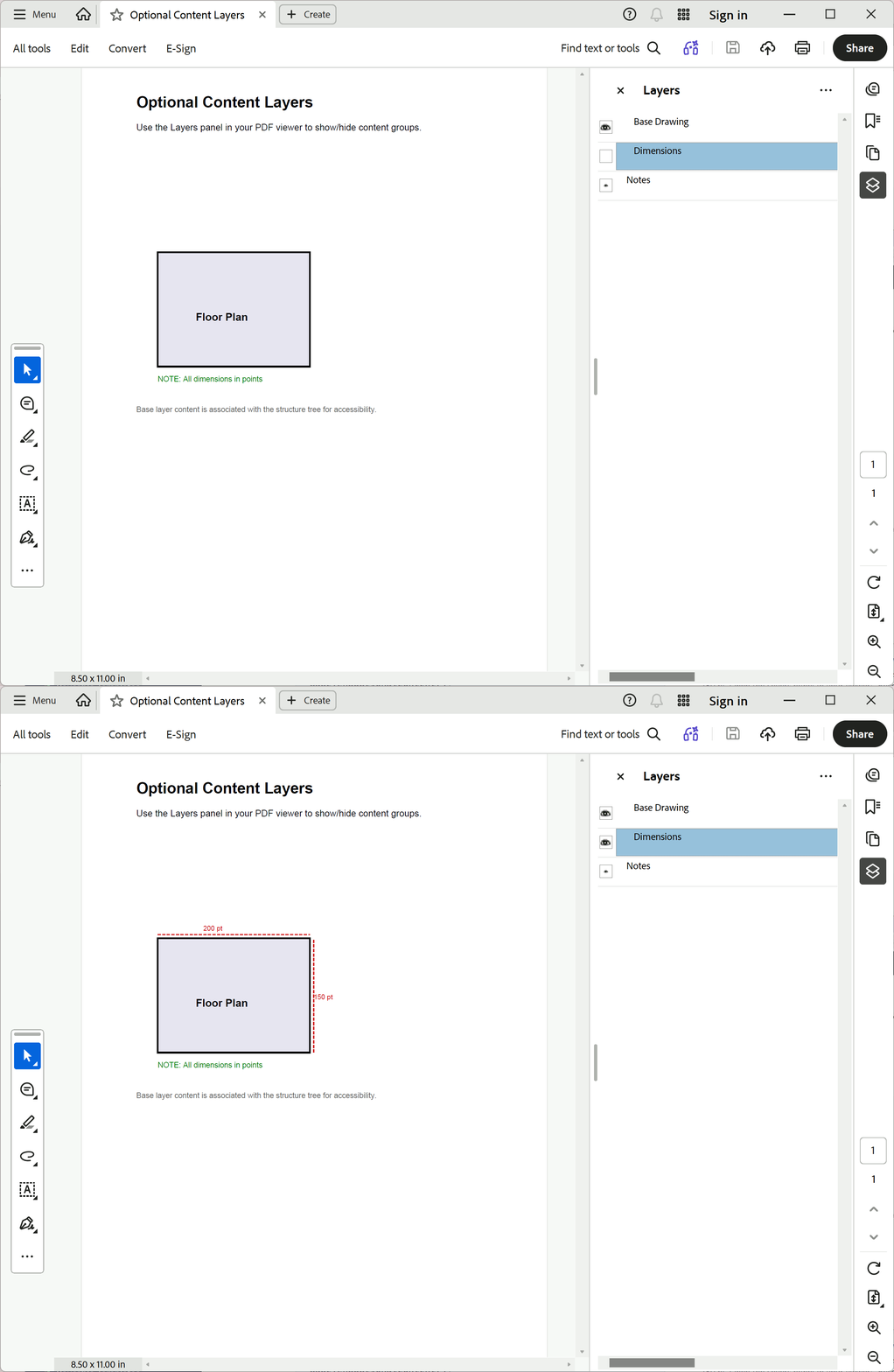
You should see a bold "Optional Content Layers" heading, an instruction paragraph, a light grey floor-plan rectangle labelled "Floor Plan", and red dashed dimension lines showing 200 pt and 150 pt. Open the Layers panel in your viewer: "Base Drawing" and "Dimensions" are on by default; "Notes" is hidden. Toggle them to show or hide each layer.
File: 14_layers.pdf