📄 XML Renderer — Accessible PDFs from XML
ObviousPDF.Xml renders XML documents into tagged, accessible PDFs. Set accessible="true" for automatic PDF/UA-1 compliance — no manual structure tree needed.
using ObviousPDF.Xml;

// Render from an XML file to a PDF file
PdfXmlRenderer.RenderFromFile(
    xmlPath:    "form-1040ea.xml",
    outputPath: "form-1040ea.pdf");

// — or — render from an XML string in memory
string xml = File.ReadAllText("form-1040ea.xml");
PdfXmlRenderer.Render(xml, "form-1040ea.pdf");

// — or — build a PdfDocument for further manipulation
using ObviousPDF;
using ObviousPDF.Accessibility;

PdfDocument doc = PdfXmlRenderer.BuildDocument(xml);

// Run the built-in accessibility checker
var checker = new PdfAccessibilityChecker();
PdfAccessibilityReport report = checker.Check(doc);

foreach (var result in report.Results)
    Console.WriteLine($"[{result.Feature}] {result.Description}");

doc.Save("form-1040ea.pdf");
Add-Type -Path "ObviousPDF.dll"
Add-Type -Path "ObviousPDF.Xml.dll"
# Render from XML file to PDF
[ObviousPDF.Xml.PdfXmlRenderer]::RenderFromFile(
"form-1040ea.xml",
"form-1040ea.pdf")
# Or render from an XML string
$xml = Get-Content "form-1040ea.xml" -Raw
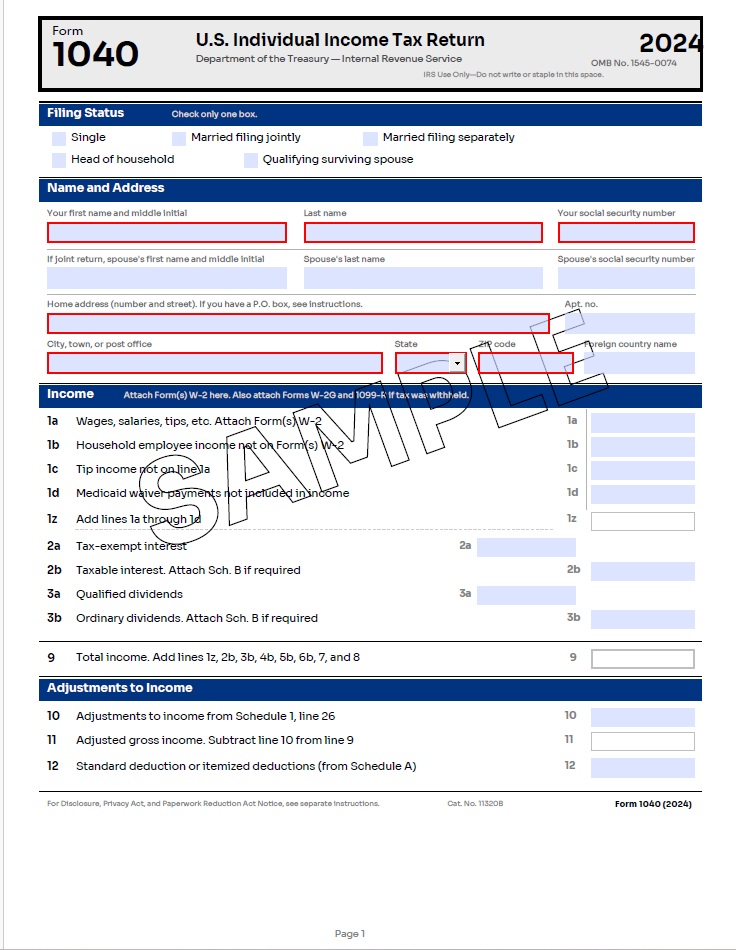
[ObviousPDF.Xml.PdfXmlRenderer]::Render($xml, "form-1040ea.pdf")The form-1040ea.xml file is a complete 3-page IRS Form 1040 (2024) with Schedule 1 — identical visual output to the JSON and CSV versions, using accessible="true" for automatic PDF/UA-1 conformance.
Form 1040 (Easy Accessibility) — XML
The same IRS Form 1040 from the JSON example, expressed as XML. Setting accessible="true" on the root <Document> element enables all the same automatic accessibility features — tagged PDF, PDF/UA-1, auto-tagging, font auto-upgrade, and display document title.
<?xml version="1.0" encoding="utf-8"?>
<Document xmlns="https://obviouspdf.com/schemas/xml/1.0"
          coordinateOrigin="topLeft"
          accessible="true">

  <DocumentSettings language="en-US" displayDocTitle="true" pdfVersion="2.0">
    <Info title="Form 1040 — U.S. Individual Income Tax Return (2024)"
          author="Department of the Treasury — Internal Revenue Service"
          subject="U.S. Individual Income Tax Return"
          keywords="IRS, 1040, tax, income, federal, 2024"
          creator="ObviousPDF.Xml" />
  </DocumentSettings>

  <Fonts>
    <Font id="title-font" mode="standardFont" standardFont="HelveticaBold" />
    <Font id="body-font"  mode="standardFont" standardFont="Helvetica" />
    <Font id="section-font" mode="standardFont" standardFont="HelveticaBold" />
  </Fonts>

  <Pages>
    <Page size="Letter">
      <Content>
        <!-- Background — artifact, excluded from tag tree -->
        <Rectangle x="0" y="0" width="612" height="792"
                   mode="fill" artifact="true" artifactType="background">
          <DrawOptions><FillColor name="white" /></DrawOptions>
        </Rectangle>

        <!-- Title — auto-tagged as H1 via structureTag -->
        <Text x="160" y="28" structureTag="H1">
          U.S. Individual Income Tax Return
          <TextOptions fontRef="title-font" fontSize="14">
            <TextColor name="black" />
          </TextOptions>
        </Text>

        <!-- Section header -->
        <Text x="36" y="90" structureTag="H2">
          Filing Status
          <TextOptions fontRef="section-font" fontSize="10">
            <TextColor name="white" />
          </TextOptions>
        </Text>

        <!-- Form field — auto-tagged as Form element -->
        <CheckboxField name="filing_single" x="40" y="110"
                       width="12" height="12"
                       tooltip="Filing status: Single" />

        <!-- Text field with tooltip for accessibility -->
        <TextField name="first_name" x="36" y="185"
                   width="200" height="18" required="true"
                   tooltip="Your first name (required)" />
      </Content>
    </Page>
  </Pages>
</Document>
What accessible="true" Does
Setting accessible="true" on the <Document> element automatically enables:
| Feature | What Happens | Standard Reference |
|---|---|---|
| Tagged PDF | Structure tree root created; /MarkInfo << /Marked true >> | ISO 32000-2 §14.8 |
| PDF/UA-1 conformance | XMP metadata declares pdfuaid:part = 1 | ISO 14289-1 §7.1 |
| Auto-tag text | Every non-artifact <Text> → <P> structure element | Matterhorn 01-003 |
| Auto-tag images | Every non-artifact <Image> → <Figure> with /Alt | ISO 14289-1 §7.3 |
| Auto-tag form fields | Every form field → <P> → <Form> | ISO 14289-1 §7.18.4 |
| Font auto-upgrade | Standard 14 fonts → embedded with Unicode CMap | ISO 14289-1 §7.21 |
| Display document title | /ViewerPreferences << /DisplayDocTitle true >> | Matterhorn 07-001 |
| Tab order | Pages with annotations get /Tabs /S | Matterhorn 28-008 |
XML vs JSON — Same Form, Different Syntax
Compare how the same form field is expressed in XML and JSON:
<TextField name="first_name"
           x="36" y="185"
           width="200" height="18"
           required="true"
tooltip="Your first name (required)" />{
"type": "textField",
"name": "first_name",
"x": 36, "y": 185,
"width": 200, "height": 18,
"required": true,
"tooltip": "Your first name (required)"
}
accessible="true"Override structureTag for Semantic Structure
By default, accessible="true" auto-tags every non-artifact text element as <P>. Use the structureTag attribute to apply richer semantics:
<Page size="Letter">
  <Content>
    <!-- H1 heading -->
    <Text x="160" y="28" structureTag="H1">
      Form Title
      <TextOptions fontRef="title-font" fontSize="14" />
    </Text>

    <!-- H2 heading -->
    <Text x="36" y="90" structureTag="H2">
      Section Header
      <TextOptions fontRef="section-font" fontSize="10" />
    </Text>

    <!-- Default paragraph (same as structureTag="P") -->
    <Text x="36" y="130">
      Regular body text...
      <TextOptions fontRef="body-font" fontSize="9" />
    </Text>

    <!-- BlockQuote -->
    <Text x="36" y="500" structureTag="BlockQuote">
      * See instructions on page 2.
      <TextOptions fontRef="body-font" fontSize="8" />
    </Text>

    <!-- Artifact — excluded from tag tree -->
    <Rectangle x="0" y="780" width="612" height="12"
               mode="fill" artifact="true" artifactType="background">
      <DrawOptions><FillColor name="white" /></DrawOptions>
    </Rectangle>
  </Content>
</Page>Built-in Accessibility Report
Add generateAccessibilityReport="true" to the <Document> element — or set it via PdfXmlRendererOptions — to receive a detailed accessibility report after rendering:
<Document xmlns="https://obviouspdf.com/schemas/xml/1.0"
          accessible="true"
          generateAccessibilityReport="true">
  ...
</Document>using ObviousPDF.Xml;
string xml = File.ReadAllText("form-1040ea.xml");
// Option 1: RenderWithReport returns the report
PdfXmlRenderResult result = PdfXmlRenderer.RenderWithReport(xml, "output.pdf");
if (result.AccessibilityReport != null)
{
foreach (var item in result.AccessibilityReport.Results)
Console.WriteLine($"[{item.Feature}] {item.Description}");
}
// Option 2: Set via options object
var options = new PdfXmlRendererOptions
{
GenerateAccessibilityReport = true
};
PdfXmlRenderer.RenderFromFile("form-1040ea.xml", "output.pdf", options);