📑 Multi-Page Documents
Create documents with multiple pages, reusable headers/footers, and consistent formatting.
Multi-Page Document
using ObviousPDF;
using ObviousPDF.Accessibility;
using ObviousPDF.Fonts;

var doc = new PdfDocument();
doc.Info.Title = "Multi-Page Document";
doc.Language = "en-US";
doc.DisplayDocTitle = true;
var root = doc.EnableTaggedPdf();

var header = doc.CreateFormXObject(612, 30);
header.DrawLine(72, 0, 540, 0,
    new PdfDrawOptions { StrokeColor = PdfColor.FromRgb(0.7, 0.7, 0.7) });
header.AddText("Multi-Page Document — ObviousPDF", 72, 8,
    new PdfTextOptions
    {
        Font = StandardFont.HelveticaOblique, FontSize = 8,
        Color = PdfColor.FromRgb(0.5, 0.5, 0.5)
    });

string[] chapters = { "Introduction", "Core Concepts", "Conclusion" };
for (int i = 0; i < chapters.Length; i++)
{
    var page = doc.AddPage();
    page.BeginArtifact(PdfArtifactType.Pagination);
    page.AddFormXObject(header, 0, 762);
    page.EndArtifact();

    var sect = root.AddChild(StructureType.Sect);
    var h1 = sect.AddChild(StructureType.H1);
    page.AddTaggedText(h1, $"Chapter {i + 1}: {chapters[i]}", 72, 720,
        new PdfTextOptions { Font = StandardFont.HelveticaBold, FontSize = 20 });

    var p = sect.AddChild(StructureType.P);
    page.AddTaggedText(p,
        "Multi-page structure with reusable headers.", 72, 690,
        new PdfTextOptions { FontSize = 12 });

    page.AddArtifactText($"Page {i + 1} of {chapters.Length}", 270, 30,
        PdfArtifactType.Pagination);
}
doc.Save("multi_page.pdf");
Imports ObviousPDF
Imports ObviousPDF.Accessibility
Imports ObviousPDF.Fonts
Dim doc As New PdfDocument()
doc.Info.Title = "Multi-Page Document"
doc.Language = "en-US"
doc.DisplayDocTitle = True
Dim root = doc.EnableTaggedPdf()
Dim header = doc.CreateFormXObject(612, 30)
header.DrawLine(72, 0, 540, 0,
New PdfDrawOptions With { .StrokeColor = PdfColor.FromRgb(0.7, 0.7, 0.7) })
header.AddText("Multi-Page Document — ObviousPDF", 72, 8,
New PdfTextOptions With {
.Font = StandardFont.HelveticaOblique, .FontSize = 8,
.Color = PdfColor.FromRgb(0.5, 0.5, 0.5)
})
Dim chapters() As String = {"Introduction", "Core Concepts", "Conclusion"}
For i As Integer = 0 To chapters.Length - 1
Dim page = doc.AddPage()
page.BeginArtifact(PdfArtifactType.Pagination)
page.AddFormXObject(header, 0, 762)
page.EndArtifact()
Dim sect = root.AddChild(StructureType.Sect)
Dim h1 = sect.AddChild(StructureType.H1)
page.AddTaggedText(h1, $"Chapter {i + 1}: {chapters(i)}", 72, 720,
New PdfTextOptions With { .Font = StandardFont.HelveticaBold, .FontSize = 20 })
Dim p = sect.AddChild(StructureType.P)
page.AddTaggedText(p, "Multi-page structure with reusable headers.",
72, 690, New PdfTextOptions With { .FontSize = 12 })
page.AddArtifactText($"Page {i + 1} of {chapters.Length}", 270, 30,
PdfArtifactType.Pagination)
Next
doc.Save("multi_page.pdf")open ObviousPDF
open ObviousPDF.Accessibility
open ObviousPDF.Fonts
let doc = PdfDocument()
doc.Info.Title <- "Multi-Page Document"
doc.Language <- "en-US"
doc.DisplayDocTitle <- true
let root = doc.EnableTaggedPdf()
let header = doc.CreateFormXObject(612.0, 30.0)
let lnO = PdfDrawOptions()
lnO.StrokeColor <- PdfColor.FromRgb(0.7, 0.7, 0.7)
header.DrawLine(72.0, 0.0, 540.0, 0.0, lnO)
let htO = PdfTextOptions()
htO.Font <- StandardFont.HelveticaOblique
htO.FontSize <- 8.0
htO.Color <- PdfColor.FromRgb(0.5, 0.5, 0.5)
header.AddText("Multi-Page Document — ObviousPDF", 72.0, 8.0, htO)
let chapters = [| "Introduction"; "Core Concepts"; "Conclusion" |]
for i in 0 .. chapters.Length - 1 do
let page = doc.AddPage()
page.BeginArtifact(PdfArtifactType.Pagination)
page.AddFormXObject(header, 0.0, 762.0)
page.EndArtifact()
let sect = root.AddChild(StructureType.Sect)
let h1 = sect.AddChild(StructureType.H1)
let hO = PdfTextOptions(Font = StandardFont.HelveticaBold, FontSize = 20.0)
page.AddTaggedText(h1, sprintf "Chapter %d: %s" (i+1) chapters.[i], 72.0, 720.0, hO)
let p = sect.AddChild(StructureType.P)
page.AddTaggedText(p, "Multi-page structure with reusable headers.",
72.0, 690.0, PdfTextOptions(FontSize = 12.0))
page.AddArtifactText(sprintf "Page %d of %d" (i+1) chapters.Length,
270.0, 30.0, PdfArtifactType.Pagination)
doc.Save("multi_page.pdf")Add-Type -Path "ObviousPDF.dll"
$doc = [ObviousPDF.PdfDocument]::new()
$doc.Info.Title = "Multi-Page Document"
$doc.Language = "en-US"
$doc.DisplayDocTitle = $true
$root = $doc.EnableTaggedPdf()
# Create a reusable header (Form XObject)
$header = $doc.CreateFormXObject(612, 30)
$header.DrawLine(72, 0, 540, 0,
[ObviousPDF.PdfDrawOptions]@{
StrokeColor = [ObviousPDF.PdfColor]::FromRgb(0.7, 0.7, 0.7)
})
$header.AddText("Multi-Page Document - ObviousPDF",
72, 8, [ObviousPDF.PdfTextOptions]@{
Font = [ObviousPDF.Fonts.StandardFont]::HelveticaOblique
FontSize = 8
Color = [ObviousPDF.PdfColor]::FromRgb(0.5, 0.5, 0.5)
})
# Generate pages
$chapters = @("Introduction", "Core Concepts", "Conclusion")
for ($i = 0; $i -lt $chapters.Length; $i++) {
$page = $doc.AddPage()
# Reusable header as artifact
$page.BeginArtifact([ObviousPDF.Accessibility.PdfArtifactType]::Pagination)
$page.AddFormXObject($header, 0, 762)
$page.EndArtifact()
# Tagged chapter heading
$sect = $root.AddChild([ObviousPDF.Accessibility.StructureType]::Sect)
$h1 = $sect.AddChild([ObviousPDF.Accessibility.StructureType]::H1)
$page.AddTaggedText($h1,
"Chapter $($i + 1): $($chapters[$i])",
72, 720, [ObviousPDF.PdfTextOptions]@{
Font = [ObviousPDF.Fonts.StandardFont]::HelveticaBold
FontSize = 20
})
# Page number artifact
$page.AddArtifactText(
"Page $($i + 1) of $($chapters.Length)",
270, 30, [ObviousPDF.Accessibility.PdfArtifactType]::Pagination)
}
$doc.Save("multi_page.pdf")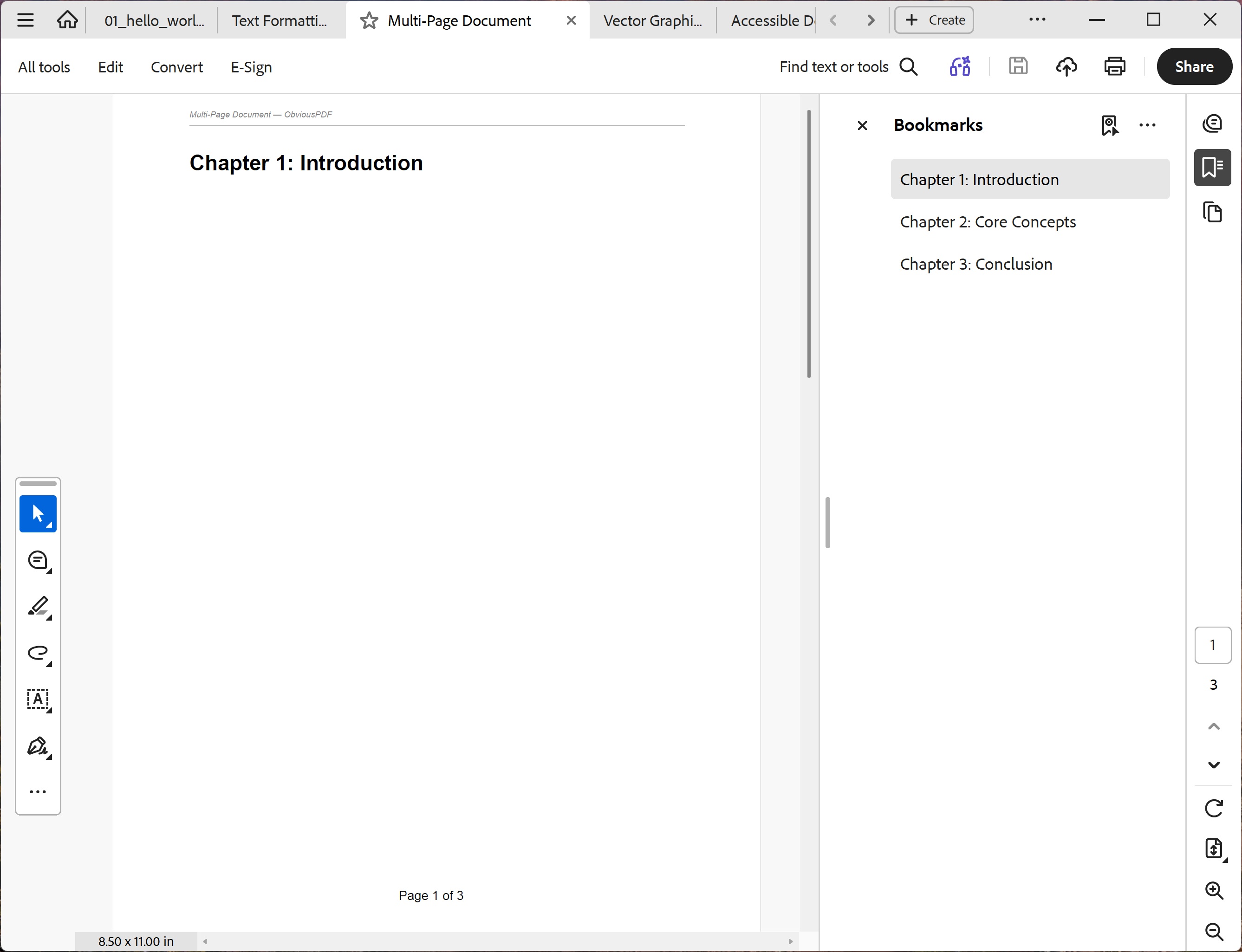
You should see three pages, each sharing the same italic gray header line at the top and a centered "Page N of 3" footer. Bold chapter headings read "Chapter 1: Introduction", "Chapter 2: Core Concepts", and "Chapter 3: Conclusion".
File: 03_multi_page.pdf